# Trim Your Inputs!
> Definition of trim, *"To cut away unnecessary parts from something."* - Oxford Dictionary.
Sometimes, validating forms in JavaScript can be a tedious task for a developer. You have to check many things. For instance, that the values given are of the type you expect them to be (string, number, object...), that they are not `undefined` or `null`. And after all that validation, you realize that a user typed an empty `string`. 🤦♂️
One of the most common issues about empty strings a developer can face is the one that has spaces.
```javascript
console.log(myInput)
> ' ' // 👈 Empty String
```
How can you prevent this from happening? In JavaScript, there are five different methods (actually there are three and two aliases) you can use. Let's check what they do.
## Use Case
In a login form, you have an input where the user needs to enter a username like the one below.
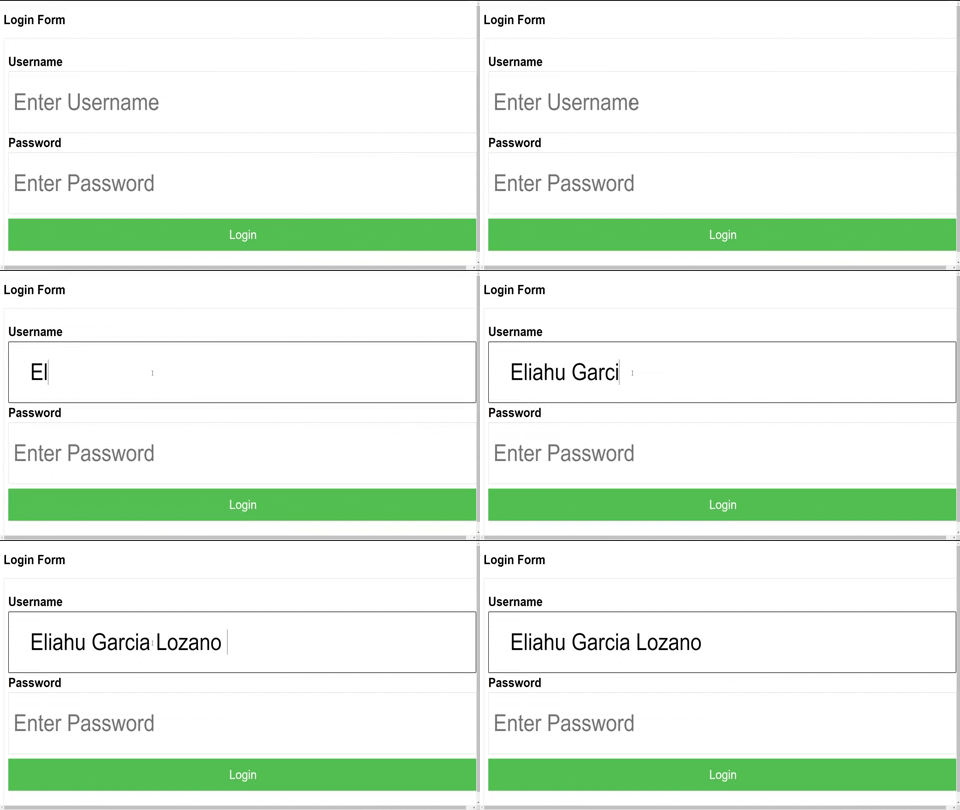
👆 Did you notice the whitespace at the beginning and the end of the input?
If we have a look at our code, the `input` would be like this:
```html
```
And the JavaScript like this:
```javascript
const userNameInput = document.querySelector('.username')
console.log(userNameInput)
> ' Eliahu Garcia Lozano '
```
Time to get rid of the whitespaces 🧹.
## TrimStart and TrimLeft
These two will remove the whitespace from the beginning of a string.
```javascript
console.log(userNameInput.trimStart())
> 'Eliahu Garcia Lozano '
console.log(userNameInput.trimLeft())
> 'Eliahu Garcia Lozano '
```
## TrimEnd and TrimRight
These two will remove the whitespace from the end of a string.
```javascript
console.log(userNameInput.trimEnd())
> ' Eliahu Garcia Lozano'
console.log(userNameInput.trimRight())
> ' Eliahu Garcia Lozano'
```
With these methods, we either removed the whitespace from the beginning or the end of a string but, what if you need to remove the whitespace from both sides?
> trimStart and trimEnd are methods while trimLeft and trimRight are aliases of those methods.
## Chaining the methods
You can use them together to get the desired result.
```javascript
console.log(userNameInput.trimStart().trimEnd())
> 'Eliahu Garcia Lozano'
console.log(userNameInput.trimRight().trimLeft())
> 'Eliahu Garcia Lozano'
```
Ok, maybe it is a little bit ugly I know. Let's check the last method, actually the one I use.
# Trim
Just like chaining methods, trim will remove the whitespace from left and right; plus, your code will look cleaner. 😅
```javascript
console.log(userNameInput.trim())
> 'Eliahu Garcia Lozano'
```
## Validating the input
In many places I've seen this kind of `string` validation:
```javascript
if (userNameInput !== "") {
// do something
}
```
The problem with this is that the user may enter whitespace.
Now that we know how to `trim` the value of the input, let's see how to implement it in our form validation.
```javascript
if (userNameInput.trim() !== "") {
// do something
}
```
Do you see the difference?
## Conclusion
We saw how to remove the whitespace from just the beginning or the end of a string as from both sides at the same time.
Remember:
* .trimStart() & .trimLeft() will remove whitespace from the left.
* .trimEnd() & .trimRight() will remove whitespace from the right.
* .trim() will remove whitespace from both the left and the right side.
From now on, Trim Your ``! (if you didn't before).
> If you found it useful, please like, subscribe, and share the knowledge.
> You might like what I share on [my Twitter][Twitter profile] too.
*Cover Picture by [Isra E][photo] on [Unsplash][Unsplash]*
[Twitter profile]: https://twitter.com/eligarlo
[photo]: https://unsplash.com/@isra_eh?utm_source=unsplash&utm_medium=referral&utm_content=creditCopyText
[Unsplash]: https://unsplash.com/s/photos/cut?utm_source=unsplash&utm_medium=referral&utm_content=creditCopyText