Trim Your Inputs!

Definition of trim, "To cut away unnecessary parts from something." - Oxford Dictionary.
Sometimes, validating forms in JavaScript can be a tedious task for a developer. You have to check many things. For instance, that the values given are of the type you expect them to be (string, number, object...), that they are not undefined or null. And after all that validation, you realize that a user typed an empty string. 🤦♂️
One of the most common issues about empty strings a developer can face is the one that has spaces.
console.log(myInput)
> '      '  // 👈 Empty String
How can you prevent this from happening? In JavaScript, there are five different methods (actually there are three and two aliases) you can use. Let's check what they do.
Use Case
In a login form, you have an input where the user needs to enter a username like the one below.
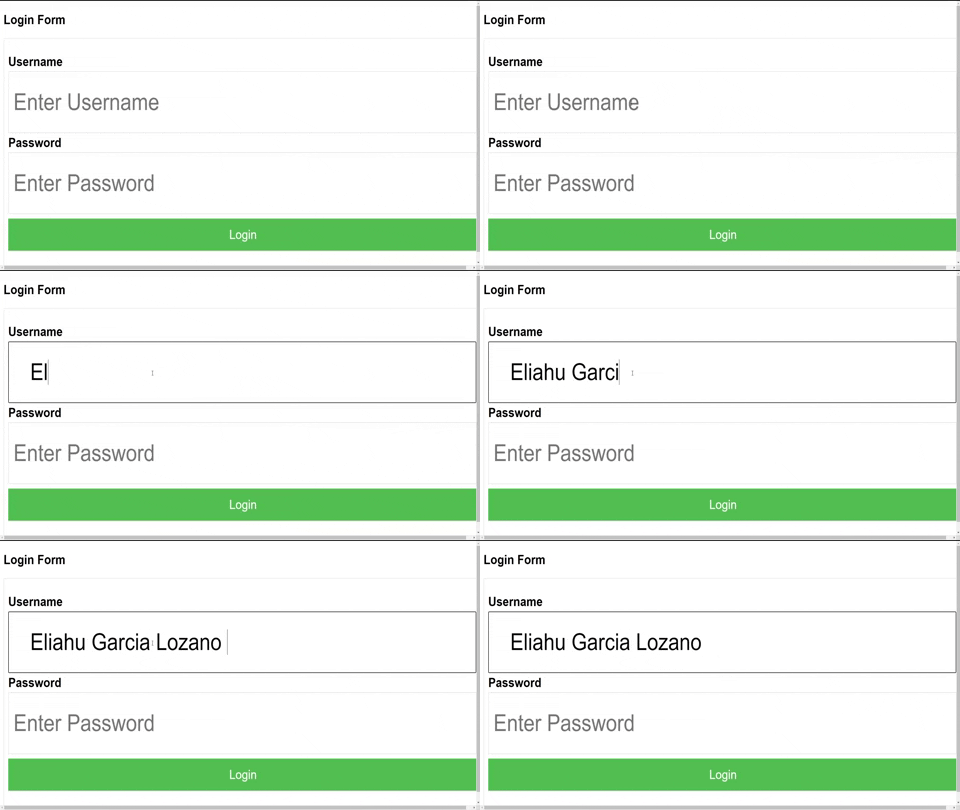
👆 Did you notice the whitespace at the beginning and the end of the input?
If we have a look at our code, the input would be like this:
<input class="username" placeholder="Enter Username" type="text">
And the JavaScript like this:
const userNameInput = document.querySelector('.username')

console.log(userNameInput)
> '   Eliahu Garcia Lozano   '
Time to get rid of the whitespaces 🧹.
TrimStart and TrimLeft
These two will remove the whitespace from the beginning of a string.
console.log(userNameInput.trimStart())
> 'Eliahu Garcia Lozano   '
console.log(userNameInput.trimLeft())
> 'Eliahu Garcia Lozano   '
TrimEnd and TrimRight
These two will remove the whitespace from the end of a string.
console.log(userNameInput.trimEnd())
> '   Eliahu Garcia Lozano'
console.log(userNameInput.trimRight())
> '   Eliahu Garcia Lozano'
With these methods, we either removed the whitespace from the beginning or the end of a string but, what if you need to remove the whitespace from both sides?
trimStart and trimEnd are methods while trimLeft and trimRight are aliases of those methods.
Chaining the methods
You can use them together to get the desired result.
console.log(userNameInput.trimStart().trimEnd())
> 'Eliahu Garcia Lozano'
console.log(userNameInput.trimRight().trimLeft())
> 'Eliahu Garcia Lozano'
Ok, maybe it is a little bit ugly I know. Let's check the last method, actually the one I use.
Trim
Just like chaining methods, trim will remove the whitespace from left and right; plus, your code will look cleaner. 😅
console.log(userNameInput.trim())
> 'Eliahu Garcia Lozano'
Validating the input
In many places I've seen this kind of string validation:
if (userNameInput !== "") {
  // do something
}
The problem with this is that the user may enter whitespace.
Now that we know how to trim the value of the input, let's see how to implement it in our form validation.
if (userNameInput.trim() !== "") {
  // do something
}
Do you see the difference?
Conclusion
We saw how to remove the whitespace from just the beginning or the end of a string as from both sides at the same time.
Remember:
- .trimStart() & .trimLeft() will remove whitespace from the left.
- .trimEnd() & .trimRight() will remove whitespace from the right.
- .trim() will remove whitespace from both the left and the right side.
From now on, Trim Your <Inputs>! (if you didn't before).
If you found it useful, please like, subscribe, and share the knowledge.
You might like what I share on my Twitter too.
About the author
Web Developer | React.js | JavaScript | Check out my blog: https://blog.eligarlo.dev
Comments
Join the discussionNo comments yet. Be the first to comment.


